


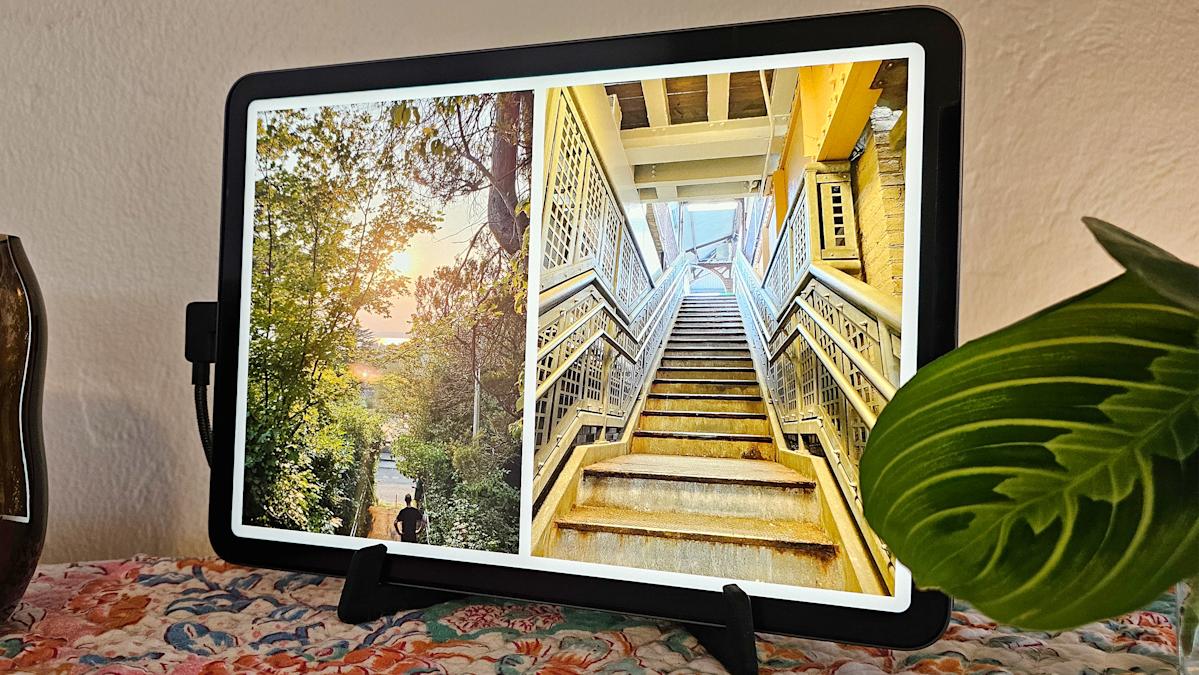
If you have an old iPad and you’re interested in externalizing some of the thousands of photos in your iCloud account, this guide’s for you. Instead of buying a new digital picture frame, you can turn your retired iPad into a dedicated photo display without much effort. You’ll need to change a few settings, download a photo frame app and decide how you want to prop up your new display — which can be as simple as using a stand or as complicated as getting out the drill and modding an analog frame. Here’s how (and why) to upcycle your old iPad into a digital picture frame.
Upcycled iPad versus a digital picture frame
An actual digital picture frame has a few obvious advantages: the necessary software is already there, it’s display-ready, complete with a frame and matted display, and, as a unitasker, it won’t display Gmail notifications over your photos. But the resolution for most smart frames tops out at 1,280 by 800 pixels. Even the standard iPad (9th gen) from 2021 has a resolution of 2,160 by 1,620. Plus, your old iPad is already yours. A decent digital frame will cost you around $100. And, since your iPad is certainly not a single-purpose device — it can take a FaceTime call or play an episode of Poker Face if the need arises.
How to turn your old iPad into a digital picture frame
I figured I’d be able to use Apple’s built-in software to do something as simple as creating a looping slideshow of images, but the experience wasn’t quite what I was looking for. Playing a slideshow within the Photos app does so as a Memory, complete with music, and there’s no way to turn that music off (though you can mute it). You can loop a Memory, but you can’t randomize the images and the interval between images is far too short (anything less than ten minutes feels like yet another screen blinking at you). So, to turn an iPad into a randomized, always-on and silent digital picture frame with a decent display length, you’ll have better luck with a third-party app.
I tried a few and my favorite is Synched Photo Frame by Re-frame ($10, lifetime access). It doesn’t pack a ton of features — no transitions, no image effects, no time and date overlay options and it’ll only access images from your Photos app — but it does the best job of making photos look good on an iPad.
It lets you set the viewing interval from 10 seconds to 24 hours and there’s a programmable sleep function so it doesn’t beam smiling pictures into the 3AM void of your living room. If your iPad is oriented differently than a photo, it shows two side-by-side images (i.e., two portrait images next to each other if your iPad is in landscape or two stacked horizontal pics if your tablet is vertical). A clean white border surrounds each split image; full-screen images go edge to edge. Images are cropped slightly to fit, which means they may lose a few details around the borders, but I think the effect is more attractive than blurred extended edges or black bars. The two-up solution is how our top pick for a digital photo frame, the Aura Carver, handles images with different aspect ratios — but you can’t set that device in portrait mode.
LiveFrame is another option and it’s actually cheaper at $5 for lifetime access. It has more features like transitions and image filters, but there’s no option for having two images up at the same time like in Re-Frame. Instead it can blur the edges, add bars or (hideously) stretch the image. I also experienced a number of glitches with the app and found the navigation a little tougher than it should be. I also tried Digital Photo Frame Slideshow but, at $30 annually, it’s too expensive for my taste and it doesn’t have a sleep function.
How to prepare your iPad for photo frame mode
Step one: Create an album
Most photo display apps will pull from albums you select in Photos. You probably already know how to make a new album, but there are a couple of elements to consider as you create one for a digital photo frame app on an iPad. All instructions are for iPadOS 18. If you’re working with an older version, the steps may be slightly different.
Open Photos and tap the side bar icon in the upper left corner.
Under Albums, tap + New Album at the bottom of that list.
Name the album something memorable, as you’ll likely have to search for it within the photo frame app. Tap Create Album, then the blue plus sign.
If you want to only (or mostly) add a specific orientation (landscape or portrait), tap the up/down arrow icon at the bottom left of the pop up menu.
Tap View Options, then Aspect Ratio Grid. This will show the shape of each image so you can more easily select only the ones with the orientation you want. You can also use the View Options menu to zoom in on the thumbnails to get a better view of each picture.
Select the images you want and tap Add in the upper right.
Step two: Adjust your iPad settings
Adjusting a couple of settings will ensure your iPad keeps playing all day, interruption-free. Simply having the digital photo frame app playing should be enough to prevent your iPad from going dark, but your iPad may auto-lock when the app’s sleep mode kicks in, requiring you to unlock it in the morning to start the app back up. You’ll also want to make sure your slideshow isn’t interrupted with notifications from other apps.
Turn off Auto-Lock: Open Settings, tap Display & Brightness, tap Auto-Lock, select Never. You may get a warning that this setting will impact battery life, but since your iPad will stay plugged in, it won’t be an issue.
Turn off all Notifications: You’ll need to turn off notifications for every app on your iPad. Go to Settings> Notifications > Notification style, toggle off Allow Notifications for every app. Note: Using the Do Not Disturb Focus will enable DND on all your connected Apple devices, unless you toggle off Share Across Devices in Settings > Focus. But turning off notifications is still the better option.
Step three: Don’t let randos get at your stuff
Since you’ll probably want to display your new picture frame somewhere that people can see, there’s a risk of someone attempting to use your iPad. To prevent this, you can use an Accessibility feature called Guided Access. Apple designed it so parents could hand an iPad to their child without also giving them access to additional apps. We’re repurposing it for photo frame security to prevent anyone from navigating to your home screen or anywhere else. People can still tap on the screen to use the photo frame app’s controls or you can disable touch altogether.
Enable Guided Access: Open Settings, tap Accessibility then Guided Access. Set an unlock code, then set Display Auto-Lock to Never.
Turn on Guided Access: While the picture frame app is playing your slideshow, triple click the side button. A grey circle will appear, tap X to close it.
Enable or disable touch: If you still want to allow others to use functions within the photo frame app, toggle the Touch option on. If you want no response when the screen is touched, toggle it off. To access the Options menu, triple click the side button and enter your passcode. Tap Options in the lower left corner.
Note: Guided Access is turned on and off via the side button, so this option might not be feasible if you decide to put your iPad in a frame. One rather extreme workaround is to reset your iPad and set it up with a brand new Apple ID connected to family sharing that allows access to a shared Photos Library.
Put your new digital photo frame on display
This can be as simple as finding a stand you like and calling it a day. An Etsy seller called Event Frame makes custom frames for iPads. They aren’t cheap, going for around $100 each, but it’s one of the only companies I’ve found that actually offers model- and generation-specific sizing. I also considered the Snap Float Folio from Moft, as I’ve been impressed with some of the brand’s other origami-inspired accessories. If you’re crafty, you can take inspiration from this person’s Instructables and make your own frame from a physical media picture frame. Personally, I just got a right-angled USB-C cable and stuck my iPad in a collapsible stand I already had. The pictures are pretty enough.
If you buy something through a link in this article, we may earn commission.
