Close Menu
  • Home
  • AI & Technology
  • Politics
  • Business
  • Cryptocurrency
  • Sports
  • Finance
  • Fitness
  • Gadgets
  • World
  • Marketing

Subscribe to Updates

Subscribe to our newsletter and never miss our latest news

Subscribe my Newsletter for New Posts & tips Let's stay updated!

What's Hot

First Lady Melania Trump Welcomes Leaders to Day One of the Fostering the Future Together Global Coalition Summit

March 26, 2026

XRP Price Risks Fresh Drop, Is Another Leg Lower Imminent?

March 26, 2026

The ‘CODE RED’ Plan to Prevent an AI-Fueled Economic Power Grab by the Left

March 26, 2026
Facebook X (Twitter) Instagram
  • Home
  • About US
  • Advertise
  • Contact US
  • DMCA
  • Privacy Policy
  • Terms & Conditions
Facebook X (Twitter) Instagram
MNK NewsMNK News
  • Home
  • AI & Technology
  • Politics
  • Business
  • Cryptocurrency
  • Sports
  • Finance
  • Fitness
  • Gadgets
  • World
  • Marketing
MNK NewsMNK News
Home » How to schedule messages on Instagram
Gadgets

How to schedule messages on Instagram

MNK NewsBy MNK NewsDecember 20, 2024No Comments3 Mins Read
Facebook Twitter Pinterest LinkedIn Tumblr Email
Share
Facebook Twitter LinkedIn Pinterest Email


Instagram is still thought of as a feed of algorithmically-suggested photos first and foremost, but the app is also pretty popular for messaging, too. If you want to take some of the stress out of remembering to send a birthday message to a friend, as part of a recent update, you can now schedule Instagram messages in advance. Scheduled messages can’t contain media like GIFs, photos or videos, but you can schedule them up to 29 days in advance on both the Android and iOS versions of the app.

What are Instagram DMs?

If you’ve stuck to using Instagram as a repository for your smartphone photos, you might have missed out on the introduction of Instagram Direct back in 2013, a direct messaging system integrated right in the Instagram app for sharing photos and videos with friends and family.

Meta has changed the look, location, and features of Instagram DMs over the years, hooking it up with Messenger in 2020, and more recently adding location-sharing abilities in November 2024. Adding scheduled messages brings Instagram more line with messaging tools like iMessage and Gmail.

How to schedule an Instagram message

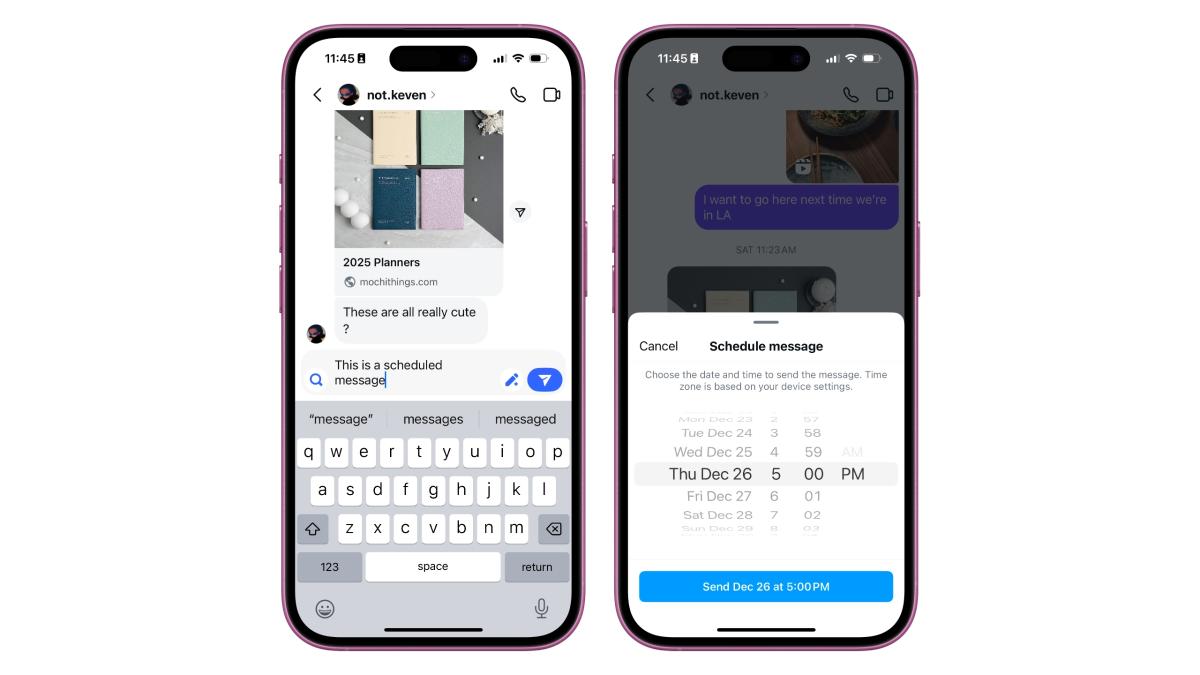
You can access DMs by tapping on the arrow or chat bubble icon in the top right corner of your feed. To schedule a message, choose an existing chat or create a new message by tapping on the new message icon in the top right corner. Then fill out the text box with whatever you want to say, and tap and hold on the blue arrow icon to the right of the text box.

Instagram will then pull up a series of dials you can use to set the date and time you want your message to be sent. Once you’re happy, tap the blue send button at the bottom of the menu and the message will be scheduled.

An Instagram chat, a menu showing the scheduled messages, and the contextual menu that pops up when you long-press on a message.An Instagram chat, a menu showing the scheduled messages, and the contextual menu that pops up when you long-press on a message.

Ian Carlos Campbell for Engadget

How to delete a scheduled Instagram message

If you change your mind about a scheduled message, you can delete them directly from your chat. From inside a chat, tap on the small text that says “scheduled messages” above the text box. Then tap and hold on the message you want to delete. From the dropdown menu that appears, tap on “Delete” to remove the message.

How to edit a scheduled Instagram message

If you want to edit your message instead of deleting it, things get more complicated. It became possible to edit normal Instagram messages in March 2024, but editing a scheduled message currently isn’t possible. There is a way to achieve the same effect if you’re willing to do some extra work, though.

First, open the chat were the scheduled message you want to edit is. Then tap on “scheduled messages” near the bottom of the screen above the text box. Find the message you want to edit, then tap and hold on it. Tap on “Copy” from the menu that menu to copy the text to your clipboard, then repeat the process and tap on “Delete.”

With your copied message in hand, paste it into the text box of your existing chat or a new message. Edit it however you see fit, then tap and hold on the blue arrow to the right of the text box to schedule it again for your desire date and time. Tap on the send button at the bottom of the menu, and it will be scheduled.


Source link

Share. Facebook Twitter Pinterest LinkedIn Tumblr Email
MNK News
  • Website

Related Posts

T-Mobile customers have a week to sign up for a free year of MLB.TV

March 25, 2026

HBO Max’s Harry Potter series premieres this Christmas

March 25, 2026

Razer’s new Blade 16 has Intel’s latest chips and ultra-fast RAM

March 25, 2026
Add A Comment
Leave A Reply Cancel Reply

Editors Picks

PM urged to postpone ‘unconstitutional’ PHF Congress meeting

March 25, 2026

Players vow to deliver despite empty stands in PSL 11

March 25, 2026

City’s League Cup glory adds twist to title race

March 23, 2026

Faryal Farooq finally conquers a four-year goal with discus gold at National Games

December 9, 2025
Our Picks

XRP Price Risks Fresh Drop, Is Another Leg Lower Imminent?

March 26, 2026

Ethereum (ETH) May Be Reversing Course, Says Top Analyst; Watch These Key Resistances

March 26, 2026

Ethereum Price Faces Downside Risk, Bears Prepare for Fresh Move

March 26, 2026

Recent Posts

  • First Lady Melania Trump Welcomes Leaders to Day One of the Fostering the Future Together Global Coalition Summit
  • XRP Price Risks Fresh Drop, Is Another Leg Lower Imminent?
  • The ‘CODE RED’ Plan to Prevent an AI-Fueled Economic Power Grab by the Left
  • Airport delays build pressure on Congress to end funding shutdown
  • Ethereum (ETH) May Be Reversing Course, Says Top Analyst; Watch These Key Resistances

Recent Comments

No comments to show.
MNK News
Facebook X (Twitter) Instagram Pinterest Vimeo YouTube
  • Home
  • About US
  • Advertise
  • Contact US
  • DMCA
  • Privacy Policy
  • Terms & Conditions
© 2026 mnknews. Designed by mnknews.

Type above and press Enter to search. Press Esc to cancel.