


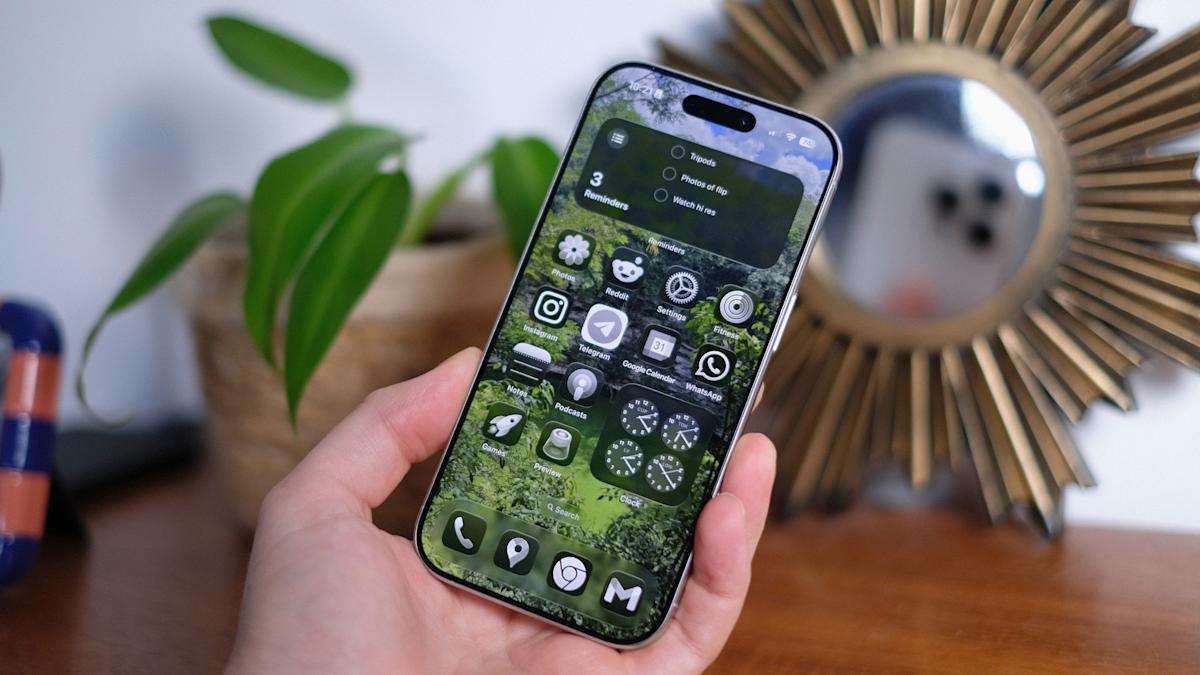
Apple continues to refine the look and feel of the iPhone with each major iOS release, and iOS 26 places more emphasis than ever on personalization. The one big change is the introduction of Spatial Scenes, a feature that allows you to create what Apple calls “holographic” lock screens. Instead of being a flat image, the wallpaper reacts to the way you move your device, giving it a sense of depth and motion that feels far more dynamic than a standard background. The effect is similar to the parallax wallpapers Apple experimented with years ago, but this time it is more refined, more responsive and built around machine learning that separates the subject from the background in a photo.
This effect works exclusively on the lock screen, leaving the home screen static unless you choose to pair wallpapers. It integrates seamlessly with existing customization tools, including widgets, clock styles and color options, giving your lock screen a fresh appearance without limiting your control.
What are Spatial Scenes in iOS 26?
Spatial Scenes in iOS 26 provides a more immersive and interactive way to personalize the iPhone. Unlike static wallpapers, the holographic lock screen responds to movement, adding depth and visual interest. It gives users more control over their device’s appearance, while still preserving usability and readability. By selecting images with clear depth and following the step-by-step setup, anyone can create a lock screen that feels dynamic and engaging.
Choosing the right photo
The type of image you select is key to achieving a successful holographic lock screen. Photos with a clear subject in the foreground with sufficient separation from the background process more effectively. Portraits, pets, buildings and landscapes often yield the best results. Images with busy backgrounds, excessive filters or heavy editing can confuse the depth detection, producing a less convincing effect.
It is also important to consider the placement of your subject. Avoid placing the main focus near the top of the photo, where it could overlap the clock or widgets, as this may interfere with the visual layering. If you store photos in iCloud with “Optimize iPhone Storage” enabled, download the full-resolution version first to ensure the effect works correctly. Choosing the right photo will save time and improve the overall holographic appearance.
How to create a holographic lock screen
To create a holographic lock screen, start by waking up your iPhone and holding your finger on the lock screen until the wallpaper gallery appears. Tap Customize on an existing wallpaper or select the plus button to add a new one. If you are adding a new wallpaper, choose Photos and browse your library to select an image that shows a clear depth of field and a distinct foreground subject.
Once you’ve picked your photo, a preview screen appears with a small hexagon icon in the lower right corner. This icon activates the Spatial Scene effect. Tap it to allow iOS to process the image. The system creates a depth map, separating the subject from the background. If the icon does not appear, the photo may not be good for Spatial Scenes, so choosing another image is recommended.
After processing, adjust the image using pinch and drag gestures to zoom or reposition the subject. Proper framing ensures the subject does not conflict with the clock or widgets. Once satisfied, tap Add or Done. You will then choose whether to apply the wallpaper as a pair, which sets it for both lock and home screens, or restrict it to the lock screen only. The holographic effect will appear whenever you view your lock screen.
Optimizing the effect
Spatial Scenes are supported on iPhone 12 models and newer, since the processing relies on more advanced chips. Low Power Mode may interfere with the motion effect, so disabling it can help if the wallpaper appears static. Accessibility settings like Reduce Motion also impact Spatial Scenes, so check these if the effect does not display. Restarting the device or selecting a different image often resolves any issues. Wide landscapes and images with a clear foreground are the most reliable, while selfies or highly filtered photos may not produce the intended depth.
It is also worth noting that the clock and widgets remain legible regardless of the effect. iOS adjusts the layering automatically, ensuring important information is not obscured by the animated depth. This balance between motion and readability makes the feature practical as well as visually appealing.
Experiencing the holographic lock screen
Once your lock screen is set, tilting your iPhone causes the foreground and background to shift independently, creating a layered, three-dimensional look. The effect is subtle enough to avoid distraction but noticeable enough to make the lock screen feel alive. You can still change clock styles, colors and widget placements without disrupting the 3D effect. If you later decide you prefer a standard wallpaper, simply hold down on the lock screen and tap the hexagon icon to disable Spatial Scenes while keeping the photo intact.
